![Excel Consulting, Development and Training [Expert Consultants]](https://www.excelhelp.com/wp-content/themes/excelhelp-opt7/assets/img/excelhelp-logo.png)
It’s common for organizations to start out with a simple Excel spreadsheet to manage their staffing needs. As organizations expand, staffing and reporting requirements often become more complex. At this stage, it makes sense to explore Excel for forecasting, scheduling, and reporting.
You can create a forecast in Excel using built-in tools like the Forecast function, the Data tab, and a line chart to visualize trends. At eSoftware Associates, our expert VBA developers have created customized Excel staffing applications for firms in construction management, manufacturing, and healthcare.
Five Key Features of an Excel Staffing Application
- Forecasting Human Resource Needs
- Forecasting Human Resource Availability
- Allocating Human Resources to various Projects, Locations and Business Unit
- Comparing Allocated vs Needed Staff
- Generating Reports for Management and Regulatory purposes
Our team can help get the customized Excel solutions for forecasting, scheduling, and analyzing your staffing needs.
Step 1: Forecasting Human Resource Needs
Excel is great for developing forecasts, whether they are based on simple counts and ratios or more complex models. Models can be developed for individual projects, locations, or business units. Then, these separate models can be aggregated using native Excel functionality or VBA code, depending on the complexity. Aggregate data is then fed into the subsequent steps.
When learning how to forecast in Excel, you can use historical data to create accurate predictions of staffing demand. Excel’s Forecast function makes it easy to generate a projection, even when your data sets follow a seasonal pattern. By combining multiple models in a workbook, you can forecast in Excel for projects, locations, or departments and then aggregate results. This helps managers predict future workforce requirements with confidence.
Step 2: Forecasting Human Resource Availability
With PTO, holidays, conferences, training, and other demands that pull people off the job, it’s important to have the availability of your resources at your disposal. If your firm is large and this information is stored in a separate database, it can be pulled into Excel with a data connection or an export/import procedure.
If your firm is small, an interface can be provided to enter this information directly into Excel. Using Excel for forecasting in this way allows you to balance projected staffing needs with actual availability, preventing overstaffing or understaffing.
Step 3: Allocating Human Resources to various Projects, Locations, and Business Units
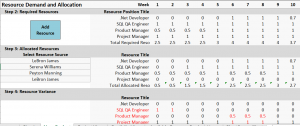
Here is where the fun begins. For each project, location, or business unit, you get to pick who you want on the job and when. Alternatively, you can provide us with logic so we can have fun developing an algorithm for use in assigning people automatically. Either way, a single person can only work up to one FTE per day. At some point, there is a limit to how much a single person can work before you will have to assign another resource to fill the need. That limit will be part of the logic that you will need to provide us if we automate this process.
With forecasting in Excel, allocation becomes more precise, as managers can overlay predicted demand with actual schedules. This process allows teams to create a forecast model that ensures each project has the right coverage.
Step 4: Comparing Allocated vs Needed Staff
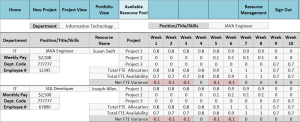
Here is where Excel does a really great job. With the data from Steps 2 and 3, nice visualizations can be created to let you quickly determine where you are over or understaffed. By creating a line chart in Excel, managers can visualize how closely allocated staff align with projected demand. This visual representation of staffing gaps makes it easier to spot trends, compare scenarios, and adjust schedules for better accuracy.
Step 5: Generating Reports for Management and Regulatory Purposes
Finally, with all the data in one place, Excel can create all the reports you need at the click of a button. No more poring over different spreadsheets for hours trying to figure things out. Patient care facilities rely on our applications to show them how they are doing in meeting the documented and required hourly care needs of their patients. These facilities not only need to ensure they are managing their staffing according to their own company policies, but they also have to maintain adequate staffing to meet regulatory requirements.

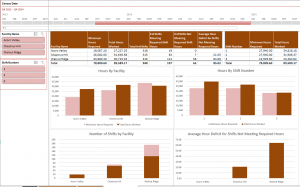
Excel forecasting tools make these reports even more powerful. You can use the Data tab to create forecasts, highlight seasonal patterns, and develop accurate predictions from historical data. Reports can incorporate multiple data sets to give leadership visibility into staffing trends and resource gaps. When you create a forecast in Excel, you can move beyond guesswork and instead make data-driven staffing decisions that improve compliance, efficiency, and outcomes.
ESW is a professional Microsoft Consulting firm specializing in Excel, SQL & Office 365. If you want to know how to forecast in Excel, how to use the Forecast function, or how to create a forecast for your staffing models, our experts can help. From data connections to custom VBA automation, we make forecasting with Excel simple, scalable, and reliable. Contact us today for a free chat regarding your Microsoft Excel consulting needs.